

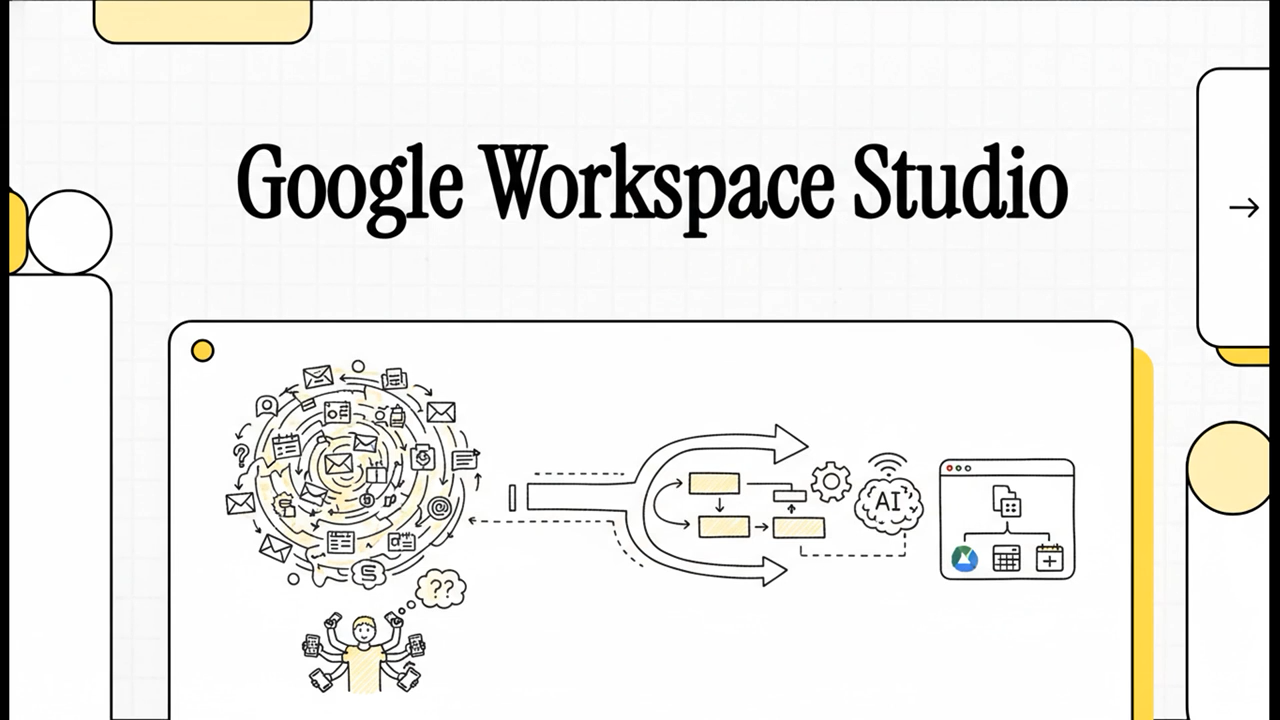
Gemini has already changed the way many people work, but Google is taking things one step further with the launch of Google Workspace Studio.
Google Workspace Studio is powered by Gemini 3, so it pairs powerful AI functionality with user-friendly design to help your team start getting even more out of Google Workspace. The platform makes it even easier to set up all the automations you need to boost productivity throughout your organization.
Here's a starter guide to everything you need to know to start putting Google Workspace Studio to good use in your organization.
What is Google Workspace Studio?
Google Workspace Studio is a platform built into Google Workspace that makes it easy to design your own AI agents based on your particular business needs. If you're worried that sounds too technical for most of your employees, have no fear: it doesn't require any coding.
People can use natural language to tell Gemini what they want their new Gemini AI agent to accomplish, or use templates for an even quicker start. Either way, it's possible to create an AI agent in a matter of minutes without any coding skill. And because it works within Google Workspace, the agents you build can function seamlessly across all your Workspace apps, along with a number of third-party apps that connect to Workspace.
In other words, if Gemini AI was a game changer, Google Workspace Studio takes you to the next level in the game.
Key Features of Google Workspace Studio
To start making use of Google Workspace Studio, you need to understand what it has to offer. Some of the main features to know about include:
- Natural Language Creation: When it comes to ease of use, words beat coding for the vast majority of people. Google Workspace Studio offers the ability to create an AI agent simply by describing it. You could say something like "When I receive an invoice, add the details to the appropriate columns in the 'Accounts Payable' Sheet along with the current date, then alert the Accounting team in Chat." Easy enough, right?
- Deep Workspace Integration: How many times a day do you move between different Workspace tabs? The agents you build in Workspace Studio can move seamlessly between Gmail, Drive, Docs, Sheets, and Chat to handle whatever task you've assigned. That can reduce how often you have to switch between apps to do your work, helping you maintain better focus.
- Multimodal Capabilities: Forget about formatting limitations. Workspace Studio agents are capable of accessing information from attachments, including pdfs and images. They can "read" your emails and attachments, interpret sentiment (e.g. identify things like urgency or negative emotions in an email), and extract data like dates and invoice numbers.
- Extensibility: Moving between multiple Workspace apps is already a big deal, but Workspace Studio agents can also access many of your third-party apps as well. Google Workspace Studio connects easily to many essential business tools including Salesforce, Jira, Asana, and Mailchimp. That means you can build agents with workflows that include multiple apps, and that can autonomously make updates within tools outside of Workspace.
- Collaboration: When you create an agent, its value doesn't have to stop with you. Sharing a Workspace Studio agent with individual colleagues, particular teams, or across your entire organization is as easy as sharing a Google Doc would be. Any employees that are stumped on how to start using generative AI more effectively can benefit from the agents their coworkers think to create.
Google Workspace Studio in Action: Example Use Cases
One of the challenges people often face with generative AI is figuring out how, specifically, it can make your life easier. What kinds of tasks is it best equipped to handle for you?
To give you an idea of the kind of use cases Google Workspace Studio agents are good for, here are a few examples:
- Executive Assistant Agent: You can use Google Workspace Studio to take some work off your own or your assistant's plate by creating an executive assistant agent. Give your agent instructions on how to triage your inbox, label priority items, and draft a daily "briefing document" in Docs. You can define how to identify priority items based on who the sender is, the sentiment expressed in the email, and whether it includes clear action items or deadlines. The agent can then help you make sure you address the most time-sensitive emails first, and can help you work through them faster by providing summaries, automatically putting events and deadlines on the calendar for you, and helping craft a first draft for replies.
- Project Management Agent: Managing a project requires coordinating a lot of different moving parts. You can let a Workspace Studio agent take over some of the work for you. An agent can monitor Chat for when you discuss and decide on action items, automatically add them to a Sheets tracker, and update the relevant Jira ticket. That reduces some of the tedious planning and scheduling work, so your team has more time to focus on the action items that require more human insight.
- Supply Chain or Finance Agent: The time your finance and supply chain employees spend copying information from emails and attachments into Sheets is not the best use of their skills. A supply chain or finance agent can extract the relevant data from emailed invoices, verify the information against a "Master Vendor" Sheet, and flag any discrepancies for a human to review and confirm. For payments that are consistent or come in under a defined amount, the agent can help automate approving and administering payment, so humans need only review a small portion of the invoices themselves.
- HR/Onboarding Agent: Getting new hires set up with all the information they need to get started can be a daunting task for your HR team. An HR agent can handle some of the more tedious aspects of the process. For example, when a candidate is selected for an offer, once you add their name and details to an "Onboarding" Sheet, your agent can automatically draft an offer letter and create and share a custom onboarding Doc or Folder that provides the initial materials they need to get up to speed on their new role.
- Customer Service Agent: Customer service reps often face a high volume of customer inquiries and have to figure out how to respond to them all in a short time frame. A customer service agent can be tasked with "reading" your emails to gauge sentiment and identify time-sensitive issues in order to put them in order of priority. Then, the agent can help you craft a response based on your past emails or templates to speed up the process of getting the customer a helpful answer.
Google Workspace Studio vs. Gemini Enterprise: What’s the Difference?
With the launch of Google Workspace Studio, many people are asking how it differs from Gemini Enterprise, Google’s other major agent-building platform. While both allow you to create AI agents without writing code, they are designed for different "neighborhoods" of your business.
- Google Workspace Studio is for "Everyday Workspace Automation": It is built directly into the Workspace interface. It’s designed for individual employees and teams who want to automate tasks within the tools they use every day — like triaging Gmail, organizing Sheets, or drafting Docs. It’s highly accessible and perfect for improving personal and team productivity.
- Gemini Enterprise is for "Business-Wide Orchestration": This is a more robust, centralized platform. It’s designed to build agents that don't just stay within Workspace, but connect deeply to your company’s proprietary data and external systems (like your CRM, data warehouses, or custom internal databases). It’s the "command center" for your organization’s AI agents, offering centralized governance and the ability to build much more complex, cross-functional workflows.
If you want to build a helper to manage your project tracker in Sheets, Google Workspace Studio is your tool. If you want to build a sophisticated agent that researches market trends across the web, pulls data from your private cloud storage, and generates a formal compliance report for your executive team, Gemini Enterprise is the platform for the job.
How to Get Started with Google Workspace Studio
First off, make sure you have the right Google Workspace plan to access Workspace Studio. Compatible options include:
- Business Starter, Standard, and Plus
- Enterprise Standard and Plus
And you must have Gemini enabled on your account. If you're not sure whether your plan and settings allow you to use Workspace Studio, check with your IT admin.
When you're ready to create your first agent with Google Workspace Studio, you've got two easy options for getting started:
- Use a template
- Describe what you want to Gemini AI
Once you've developed some familiarity with Google Workspace Studio, you can graduate to creating a flow from scratch. But to start, it's best to use the tools Workspace Studio offers to make the process easier on you.
Option 1: Creating an AI Agent with a Template
Google Workspace Studio provides a lot of pre-built templates to help users get started fast. To go this route:
- Start by opening the page studio.workspace.google.com on your computer. (Note: to create an AI agent, you have to be on a computer. But once it's set up, it should work on mobile devices as well.)
- On the "Discover" page, you'll see a list of templates Google Workspace Studio has already built for common tasks. Do some browsing and pick the one most relevant to your needs.
- Clicking on the template you selected will open the flow editor. This is where you can make any changes to the template to configure it to your particular preferences.
Jump to the Next Steps section for how to take it from there.
Option 2: Creating an AI Agent with Gemini AI
If none of the templates match a need you have, or if you already have something specific in mind for your first AI agent, you can instead create an agent by telling Gemini AI what you want. In this case:
- Go to studio.workspace.google.com on your computer.
- Look for the box in the center of the page that says "Describe a task for Gemini" (don't worry it will be easy to see).
- Write a description, in straightforward and specific language, of what you want your agent to do. One example could be saying "Whenever an email is received to the customerservice@brand.com inbox, analyze sentiment, and alert me in Chat if sentiment is negative." Once you're happy with your description, click "Create."
- Gemini AI will automatically create the steps for you to review. Review all the steps to determine they look correct, add any necessary detail, and make any needed changes.
Move on to the Next Steps section for more information on getting your AI agent right.
Next Steps with Both Options
While templates and Gemini AI can do a lot of the work for you, it's valuable to understand how a good agent workflow is structured. Give a look to Google Workspace Studio's Examples and Templates page to get some ideas of what an effective flow should look like.
The basic components and steps to understand are:
- Define your starter: The starter is how you tell your agent when it should run. That could be on a schedule like "every Monday morning at 9am" or based on a trigger like "when I receive an email from jane@brand.com" or "when an item is added to the folder titled 'Invoices.'"
- Clarify your steps: These are the steps in your flow that Gemini should follow to complete your task. Steps can be actions like "Summarize the email" or "Draft a reply based on the email template named 'Onboarding email.'"
- Get your variables right: Your Starter and Steps will likely require defining variables — specific components of your Workspace resources that the agent will need to reference to complete the defined actions. Some examples of variables are: email subject lines, Drive file names and links, email senders and recipients, meeting names and dates, etc.
- Test out your flow: Once your flow looks good, test it out to see how it runs. At the bottom of the flow editor, you'll see the option "Test Run > Start." Be warned: a test run will take real actions. If your agent is supposed to send an email to a co-worker, it will. You might give any affected co-workers a head's up of what to expect.
- Launch your agent: If the test run goes well, your agent is ready. Click "Turn on."
AI Agents Made Easy
Google Workspace Studio puts agentic AI in the hands of all your employees, regardless of their technical skill level. Most can start creating agents right away by simply experimenting — very little training or instruction required. But as with any tech tool, you can likely take its functionality further the better you understand what it can do and how best to use it.
For that, Promevo can help. We offer personalized Gemini deployment workshops that cover how to use Google AI and its features effectively for your main needs. Google has put powerful AI agents within reach for your entire workforce. We can help your employees develop the right mix of skills and knowledge to put them to work for you.