
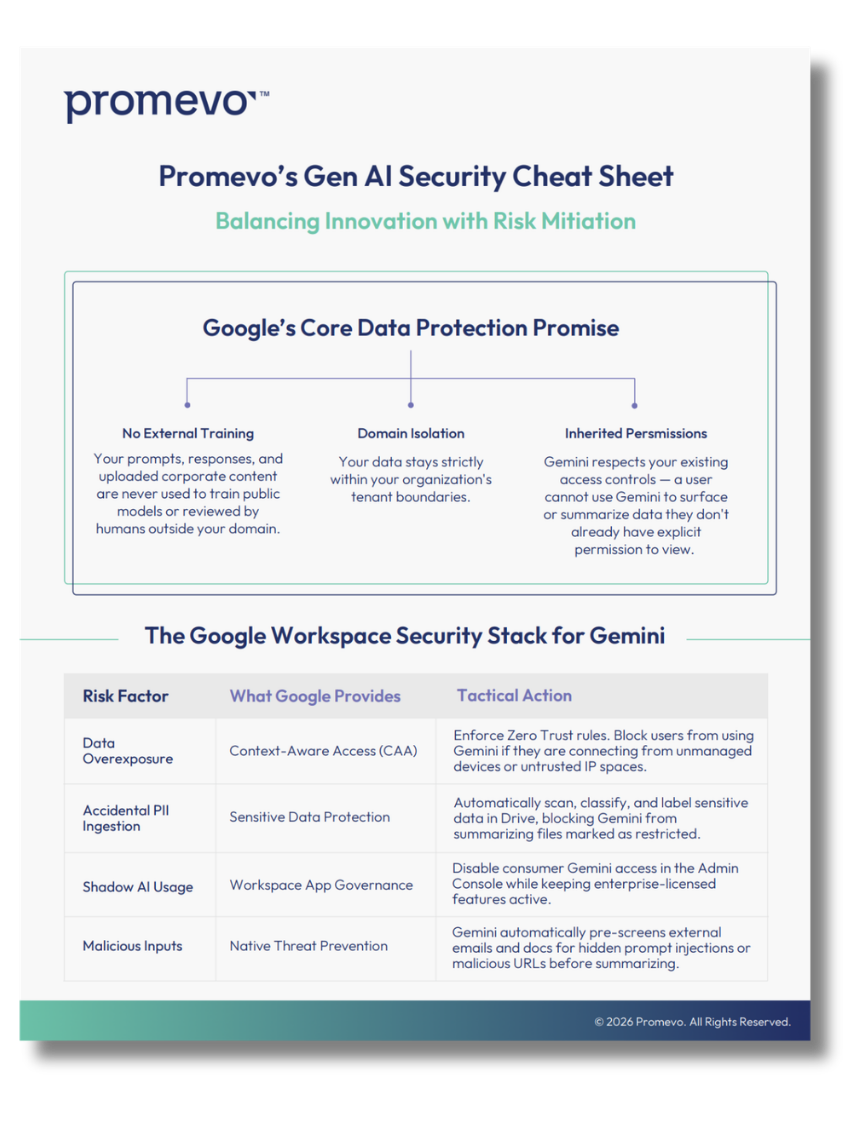



In an era where businesses depend on cloud-based services to store and share sensitive data, robust security measures are more important than ever. Context-Aware Access (CAA) in Google Workspace plays a vital role in ensuring that the right people access the right information under the right conditions.
Organizations need adaptive access controls to prevent unauthorized access, secure sensitive information, and maintain productivity. With CAA, businesses can enforce policies that adapt to the context of the user’s request, such as their location or device security status. This ensures security without compromising user experience or efficiency.
Understanding Context-Aware Access in Google Workspace
Context-Aware Access is a feature in Google Workspace that provides organizations with the ability to enforce conditional access policies. These policies help ensure that only trusted users, devices, and networks can access sensitive resources, making it a key security tool for businesses.
Key Components of CAA
- User identity: Determines who is accessing your systems based on their login credentials and associated Google account.
- Device security status: Differentiates between managed (company-owned) and unmanaged devices (personal devices), restricting access based on the device's compliance.
- Location-based restrictions: Restricts access depending on where the user is physically located—useful for limiting access to specific regions or countries.
- Network/IP-based access controls: Restricts access based on the network or IP address the user connects from, such as allowing access only from company-approved IP ranges.
Differences Between CAA & Traditional Access Management
Traditional access management often relies on static access permissions, such as assigning users to fixed roles with predetermined access.
CAA, on the other hand, brings a dynamic layer by factoring in additional elements, like location or device security, making access decisions more granular and adaptive. This approach ensures that access controls adjust to real-time risks rather than relying solely on identity-based rules.
Preparing Your Organization for CAA Deployment
Before implementing CAA, a few steps can help ensure a smooth and effective deployment.
- Assess your security needs: Determine which data and applications require the highest levels of protection and need granular access controls. This includes sensitive financial data, customer records, or intellectual property.
- Evaluate existing access policies: Review current access control settings to identify where CAA can be integrated effectively. Do you already have location-based restrictions in place, or is there a need for device-based access policies?
- Ensure device and identity management: CAA depends on well-established identity and device management practices. Tools like Google Endpoint Management or third-party Mobile Device Management (MDM) solutions will help you ensure that only secure devices can access Google Workspace.
- Communicate changes to users and admins: Prepare your team for the changes CAA will bring by clearly communicating new security measures. This can help reduce confusion and prevent disruptions when policies are enforced.
Setting Up Context-Aware Access Policies
Setting up CAA in Google Workspace requires the right configuration. Here’s how you can do it.
Enabling CAA in Google Workspace
- Navigate to Google Admin Console → Security → Context-Aware Access: This is where you will manage your CAA settings.
- Assign predefined access levels or create custom rules: Decide on access conditions based on your organization’s needs. You can either use Google’s predefined rules or set up your own tailored policies.
- Define policies based on:
- IP address: Set up rules to allow or deny access based on location, such as restricting access to office locations or requiring VPN connections for remote access.
- Device type & compliance status: Block access from unmanaged devices or enforce specific device security measures like encryption or up-to-date antivirus software.
- User groups & organizational units (OUs): Implement policies that vary across departments. For example, more stringent policies may apply to finance teams than to marketing.
Applying CAA to Google Workspace Apps
- Assign CAA policies to specific Google services: You can apply CAA policies to individual services such as Drive, Gmail, and Google Meet. For example, you may allow full access to Drive but restrict Gmail access from certain locations or devices.
- Use different rules for different OUs: Apply stricter controls for higher-risk departments. Finance teams might require more security, while less sensitive teams might have more relaxed access rules.
- Test policies before full deployment: Always run a pilot program for your CAA policies. Testing allows you to identify potential issues and refine your settings before rolling them out to the entire organization.
Best Practices for a Smooth Deployment
Deploying CAA effectively takes careful planning and ongoing management.
- Start with a pilot program: Roll out policies to a small group of users first. This gives you a chance to test policies and troubleshoot any issues before full deployment.
- Leverage Google Groups for policy assignments: Simplify the assignment of policies by using Google Groups to manage users based on their roles. This makes it easier to adjust access levels as needed.
- Regularly review and update policies: As your business evolves, so should your access policies. Regularly revisit your CAA settings to ensure they align with any changes to your organizational structure or security needs.
- Monitor access logs: Use the Google Admin Console to monitor access logs for unauthorized attempts. This can help you identify any suspicious behavior and quickly respond to security risks.
- Educate employees on security best practices: Ensure that employees understand how CAA impacts their access to resources and the importance of following security protocols, such as using managed devices and logging in from approved locations.
Context-Aware Access (CAA) offers Google Workspace users a powerful way to secure their sensitive data while ensuring that productivity is not disrupted. By factoring in user identity, device status, location, and network, businesses can create adaptive, context-driven policies that ensure secure access without unnecessary barriers.
For organizations looking to deploy CAA effectively, Promevo’s team of experts is ready to help. Whether you need assistance setting up policies, managing access, or training your teams, we can guide you through every step of the process.
Contact Promevo today to make Context-Aware Access a seamless and secure part of your Google Workspace deployment.