Transcript
Hailee Zapata:
Hi, everyone. Thank you for joining us today!
Welcome to our webinar on how to supercharge your productivity with [Gemini] for Google Workspace. Over the next 45 minutes, we'll introduce [Gemini] for Google Workspace, discuss its product features, provide a live demo of [Gemini], review Google's public product roadmap, explain how to get started using [Gemini] within your organization, and end the session with a Q&A with our presenters.
I'm Hailee Zapata, your webinar host and Alliance Marketing Manager at Promevo, a Premier Google Partner specializing in ChromeOS, Google Workspace, Google Cloud, and gPanel, our proprietary Workspace management tool.
Now, onto our presenters. I'd like to introduce John Pettit, our CTO and CIO at Promevo, as well as Mark, one of our Systems Support Engineers. Mark will be doing our live demo.
Mark, take it away!
Mark Baquirin:
Thank you, Hailee. I'm Mark, with the Promevo support team. Today, I'll introduce [Gemini], provide a demonstration, and answer any questions you might have.
[Gemini] for Google Workspace is a generative AI, integrated with Gmail, Google Docs, Sheets, Slides, and Meet. It helps your team be more productive in four categories.
First, unleash your writing potential to overcome writer's block. Simply type your topic, and [Gemini] generates a draft.
Second, paint your ideas into reality with unique visuals for presentations.
Third, master your data in Google Sheets by describing your goals, and let [Gemini] generate tables.
Fourth, in Google Meet, connect your team effectively with improved image, sound, and lighting quality.
[Gemini] can translate captions, generate backgrounds, and create meeting summaries. To save time and eliminate hurdles, it automates repetitive tasks. Now, let's dive into the demonstration.
In this demonstration, we will be following a fictional company that specializes in camping products.
First of all, we'll be following a hiring manager. His name is Victor. Victor is being tasked with hiring a new marketing manager.
Victor can use [Gemini] to assist with several of these or to assist him to help make this process more efficient. The first thing he will want to do is create a job description for the marketing manager role.
So, typically, if you are creating job descriptions from scratch, you will have to either follow a template or write something from scratch. But in this case, when you open up Google Docs, you will see this “Help me write” button. Clicking that will open up [Gemini].
In the prompt box, you can start typing in the idea that you have and [Gemini] will create the rest. If you're not sure what to write, if you have a little bit of writer's block, you can just pause for a second, and it will scroll through different examples of things that you can generate. Your prompt can be very simple or much longer, if you want. The more details you add, the more details you'll get in the response.
In this particular example, I am going to paste in my example. I'd like to craft the job description for the marketing manager role. The candidate must have two years of experience running nationwide campaigns.
It will take a couple of moments for [Gemini] to generate a response. You’ll have the option to rate [Gemini]’s suggestion. Rating it “thumbs up” or “thumbs down” helps to train the AI and generate better responses.
So, that's one tool you have. After reading over the reply that gives you, you can also press the “refine” button and adjust the tone from formal to casual, summarize it, bulletize, elaborate, or shorten. You can also regenerate a new response if you don't like the way that that was written. You can just continue to do that until it's close to what it is that you had in mind.
And here we go. It's been rewritten, and you can see here that it's different from the first response. It does have the elements that were the rest of it here. This is your original prompt; you can continue to edit and add more to it as ideas come to you. In this case, I'm going to add that they must be willing to travel abroad. Once I update that, it will be added to this job description. You can continue to build on it or refine it until it's as close to perfect as possible.
Once satisfied, you can insert it into your document. You may further refine it if needed, making updates and adjustments, such as specifying a bachelor's degree in marketing and sales. You can also edit different sections; for example, if I highlight this section, I can adjust the tone. If I'm happy with it, I can replace it.
You have the flexibility to formalize, summarize, bulletize, elaborate, shorten, and rephrase. The custom option allows you to change it completely, even turning it into a poem or a short story. So, there are unlimited options to customize it to your needs.
Now, back to our hiring manager. Once he has generated the job description, he can post it and then use [Gemini] and Google Sheets to organize the received applications.
Let's fast forward a bit. After posting the job description, he can use [Gemini] and Google Sheets to help organize the received information, such as applications. If, for instance, there are five applicants, he can create an interview itinerary.
Opening Google Sheets with [Gemini], he can use the "Help me organize" section to create an interview itinerary for five candidates. The interview location can be remote or in person. Let's see.
So, this is what it gave us. It's thanking the candidate, informing them they've been selected for the role, and giving three reasons why we chose them based on their initial email here. If we want to change it up, we can recreate it.
If we don't like the wording, we can hit recreate, and it'll quickly generate a new email. It's very similar because, of course, we didn't give that much of a prompt here. We can always add to the prompt if we want to.
Then, we can further refine this if we want to. This will give you that familiar toolset that we had before. We're able to formalize it, elaborate on it, shorten it, or try our luck, which is sort of a wild card.
Let's go back to our hiring manager. Once he's generated the job description to his liking, he can post it, and we'll fast forward to the next steps. After posting the job description, he can use [Gemini] and Google Sheets to organize the received applications.
If there are five applicants, for instance, he can open the help me organize section in [Gemini] on the right panel of Sheets. You can create lists, tasks, schedules, reports, and more. In this case, I'll create an interview itinerary for five candidates applying for the marketing manager position. The interview location can be remote or in person.
As you can see, [Gemini] generates the structure, including columns for names, dates, times, and locations. Adjustments can be made as needed. The system also suggests topics and notes for added organization.
Moving on to our hiring manager, Victor, after creating interview itineraries, he can use Google Meets for remote interviews with [Gemini] providing real-time translations. By clicking on closed captions, you can choose the language for translation, enhancing global communication.
Now, let's see how [Gemini] can help Victor respond to emails efficiently in Gmail. When crafting a response to a thank-you letter from Janet Allen, he can use [Gemini] to generate a thoughtful reply. By clicking on the help me prompt, he can instruct [Gemini] to compose a reply, expressing gratitude, notifying of the role's acceptance, and giving three reasons for the choice. The system quickly generates a response, which can be further refined or sent as is.
Fast-forwarding to Janet, now the marketing manager, we see how she can use [Gemini] to compose messages from scratch. In her mailbox, when composing a message to the marketing team requesting ideas for camping products, she uses the “help me” prompt to instruct [Gemini].
The system generates a message with the requested information and even suggests examples and a positive incentive for the team. Janet can continue to refine the message until satisfied and then insert it into the email composition.
You can keep building and updating until you've got the structure you want. Once satisfied, hit insert, but just like before, it won't send until you fill out recipient details, subject, and other finishing touches. Personalize it a bit, and you're good to go. It saves a lot of time and creative energy.
For the next example, Janet will use Google Meet. I'll show you some additional features that I couldn't cover earlier.
John Pettit:
Hey, Mark, while you're starting up Google Meet, one of the questions that came up about captions was, do users get to select their language? Are the captions set by the host or independently by each user for the language they prefer?
Mark Baquirin:
That's a great question. I haven't tested it, so I'll get back to you with a more accurate answer. It's an excellent point. I'm not too sure yet.
Okay, for the next part of this demonstration, I'll show you a few other things you can do in Google Meet aside from captions.
In this segment, I'll guide you through adjusting controls for image, audio, and lighting quality. Navigate to the more options, represented by a three-dot icon, and select settings. Similar to previous sections, you'll find options for audio and video settings.
In the audio settings, you can enable noise cancellation, which filters out ambient sounds, and use push-to-talk, allowing you to unmute yourself with the space bar. Moving to video settings, you can fine-tune video lighting for better visibility against bright backgrounds.
I'll quickly cover framing, which centers you on the screen, and the studio look, a feature that sharpens your features for enhanced visibility. Unlike traditional filters, the studio look is seamlessly applied in real-time by rewriting the video feed.
Now, let's explore the fascinating ability to create custom backgrounds under the apply visual effects section. In “apply video effects,” Google offers temporary holiday backgrounds and regular options. Clicking on "generate a background" opens [Gemini], allowing you to describe a background and choose a style.
Once generated, you can select from four unique backgrounds. If you find one you like, turning off the feature keeps it, and the chosen background is saved for future use. This feature also retains your audio and video settings.
Let's create an example that showcases the creative possibilities. For an outdoor company, I'll describe "outdoor camping by a stream" with no specific style. [Gemini] generates four options, and you can choose the one that suits you.
Once selected, the background is saved for future use, maintaining a personalized touch even after leaving and returning to a Google Meet session.
Now, let's get a bit more imaginative. How about a "flying castle" with a fantasy style? Let's see what [Gemini] comes up with for this fantastical concept.
John Pettit:
While that's generating, I’ll answer this audience question about captioning. If the setting is turned on by each user, then people across multiple languages can adjust the captions and have them translated to their language on the fly.
Mark Baquirin:
Perfect. Thank you, John.
So, here's a look at the image. I actually want to save that; it's kind of nice. So, okay. That gives you a look at the background images.
Speaking of images, our marketing manager can generate images not only here in Meets but also in Google Slides. In Google Slides, this creates images with a [Gemini] panel, once again on the right. If it's closed, you can access it by hitting this little icon.
Creating images with [Gemini] is easy. So there it is, and it will cycle through different ideas here. Down here, you can see it has some inspiration examples and the prompt used to create it.
In this case, a candle made out of cotton candy would generate something like this. As you can see, you can be very complex with it, and it will produce an image close to what you're looking for.
So, in this example, I'll go ahead and, once again, I'll do outdoor products as before I choose a style, I'll just hit create to show you what happens. After a few moments, it will generate, once again, a few different examples for you to choose from.
Okay, you can see here we've got boots and a camping tent. You click on it, move it around, resize the image, change things up, and add them to different slides.
One thing about the styles; you have different options. “No style” is random, and you have photography, background, vector art, sketch, watercolor, cyberpunk, and I'm feeling lucky, which is a wildcard. The one that's different is the background.
Let me choose a background and show you how that works. Instead of giving you a little image here, it will create a background image that applies to the entire slide when clicked on. If I want to do it on this slide, I can choose that. This is a way for you to easily select multiple slides and apply a background to the entire deck, giving you a consistent feel.
Then you still have the option to add other visual elements. It saves you time and eliminates the need to search for copyright-free images. You can quickly generate your images based on your ideas.
Also, you're not limited to images that are already produced. The only limitation is your ability to describe the image you're looking for. That's how [Gemini] can help you save a lot of time with slides.
Now, I'll jump back to Google Docs. There's one thing I did not show you here. With Google Docs, previously, we showcased how you can use it to generate a doc from scratch.
If you want to pull in an article, you can click on [Gemini], proofread this document, and it'll open up a side pane with suggestions to help you proofread. It provides filter suggestions for spelling, grammar, wording, conciseness, sentence split, and active voice. You can deselect them and choose only the ones you're interested in.
When you see a suggestion, click on it, and it will take you directly to that section. You can accept or dismiss suggestions by hitting the check mark or x. Once you've made all your edits, you can go back, highlight the entire article or a portion of it, and use the magic pencil icon to refine the tone, make it more formal or casual, summarize it, or expand it. That's almost it.
There's also one more thing you can do with Google Sheets. In this example, I'm going to create a report. I'll ask it for quarterly P&L reports for tents, sleeping bags, backpacks, clothes, and accessories, and forecast expected sales for the next year. Let's see what it gives me to organize this information I've fed it.
Okay, now it's not working. I apologize for this; earlier today, we were having a problem with the sheets. I thought it was fixed temporarily, but now it looks like it's not working again. Not to worry; Google is working on a fix for this, and it should be fixed today. I think you saw earlier that it was working, but that's okay.
I can jump over to this report here instead. Although it's not the same report, the main point I want to emphasize is your ability to copy that part of the report. So, in Sheets, you can open Docs, create a new document, drop the table into "help me," and create that. It will insert the entire table.
From here, you can summarize it, turning your table into a paragraph for better understanding. You can read and refine it, as the summary provided here. It's bulletized, and you can elaborate on it to make it longer. The table gives insights into its content, offering a quick way to transform data from word form to table form — a handy shortcut we discovered.
John Pettit:
Alright, thanks, Mark.
One thing worth mentioning is that [Gemini] for Workspace is just part of the overall AI story for Google. There's also in-progress AI for GCP, providing powerful tools to summarize, generate, and automate activities within the cloud console.
Additionally, there are integrations for Google Hub, where organizations can create tools like ChatGPT through Vertex AI or GenAI add builder.
For governance, it's crucial to review acceptable use policies, set up an education program for employees, and identify influencers to drive innovation and education within the organization.
Those interested in getting started can contact their client success manager at Promevo for personalized demos, discussions about specific use cases, and insights into upcoming features. There's a trial period available to explore [Gemini]'s potential with a set number of users.
To decide who gets access, start with a core group, often in IT, then extend to influencers excited about new technology. Success stories can guide decisions on wider adoption based on specific organizational needs.
Hailee Zapata:
Alright, thanks, guys. That was great. So how many of you pinged your boss already and asked for [Gemini]? Because I know I learned something new and cool today. So thank you, Mark and John. That was fantastic.
We're going to get to the Q&A soon. So, if you have any last-minute questions, please put them out.
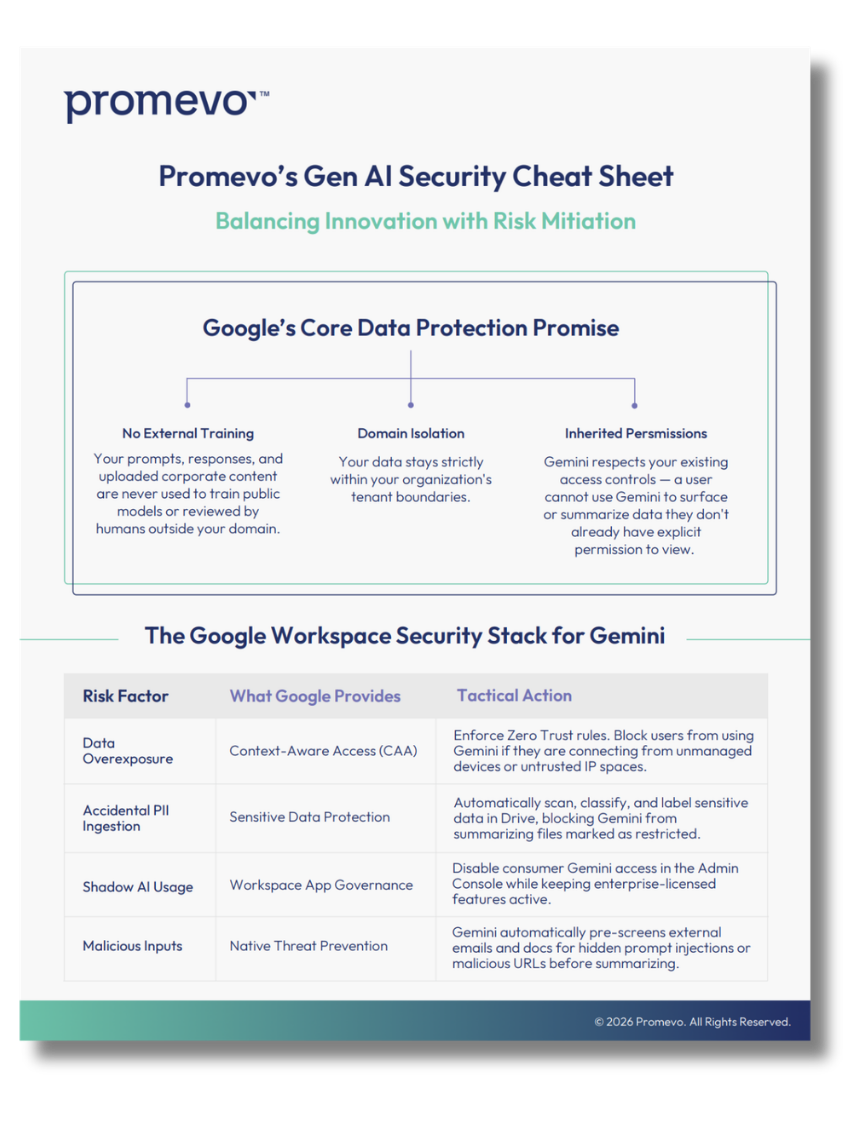
We also hope that you guys will check out our websites for more information. We've also linked our latest blog on [Gemini] and our one-pager.
On the right-hand side, you'll see our upcoming webinars. When we send out the follow-up email, it will contain links to those registrations, the deck, and the recording today. So that'll be great.
Now, let's move on to our questions. I know John answered a few, so let's see here.
John, this might be a question for you. How can you justify the financial costs if you go to your executives asking for [Gemini]?
John Pettit:
Managing budget concerns is a common challenge when introducing new tools.
If you're in the renewal cycle or committed to Google, negotiating additional licenses offers room for discussions on discounts. Engaging executives in a trial is crucial; demonstrating the tool's capabilities during this period can help them understand its value and gain their support.
Executive sponsors are pivotal in any digital transformation, so involving them early on in a trial is a great initial step. If necessary, creating a dedicated team or initiative, like a "Digital Transformation Team," can bring enthusiasm and engagement.
The trial not only showcases [Gemini]'s benefits but also uncovers other potential use cases, leading to broader business transformations. So, consider involving Promevo to explore additional integrations with tools like Vertex for specific business needs.
Hailee Zapata:
Okay. Great. Mark, I think this is a question for you.
I know you said you can take the text to make it formal or casual, but can it be trained to sound like your company's voice?
Every company has a unique tone. So, can [Gemini] AI be customized to match that voice?
Mark Baquirin:
Currently, it's somewhat limited to using thumbs up and thumbs down for training. While there's no direct input of past responses, you can influence its style through this feedback mechanism.
However, as of now, there isn't a feature allowing input of extensive past content for training purposes. The process relies on iterative improvement through user feedback.
John Pettit:
Another question that came up is, can you license just a few users or is it necessary to license the entire organization? The answer is yes, you can license a specific group of users within your organization.
It doesn't have to be for the entire organization initially. You can start with a smaller group, gauge its impact, and then expand the licenses as needed.
Hailee Zapata:
Alright, this is probably our last question. Is there going to be any integration into Google Admin, especially around reporting?
John Pettit:
Currently, there's no indication of Admin Console integration on the roadmap. However, continuous updates and improvements are expected.
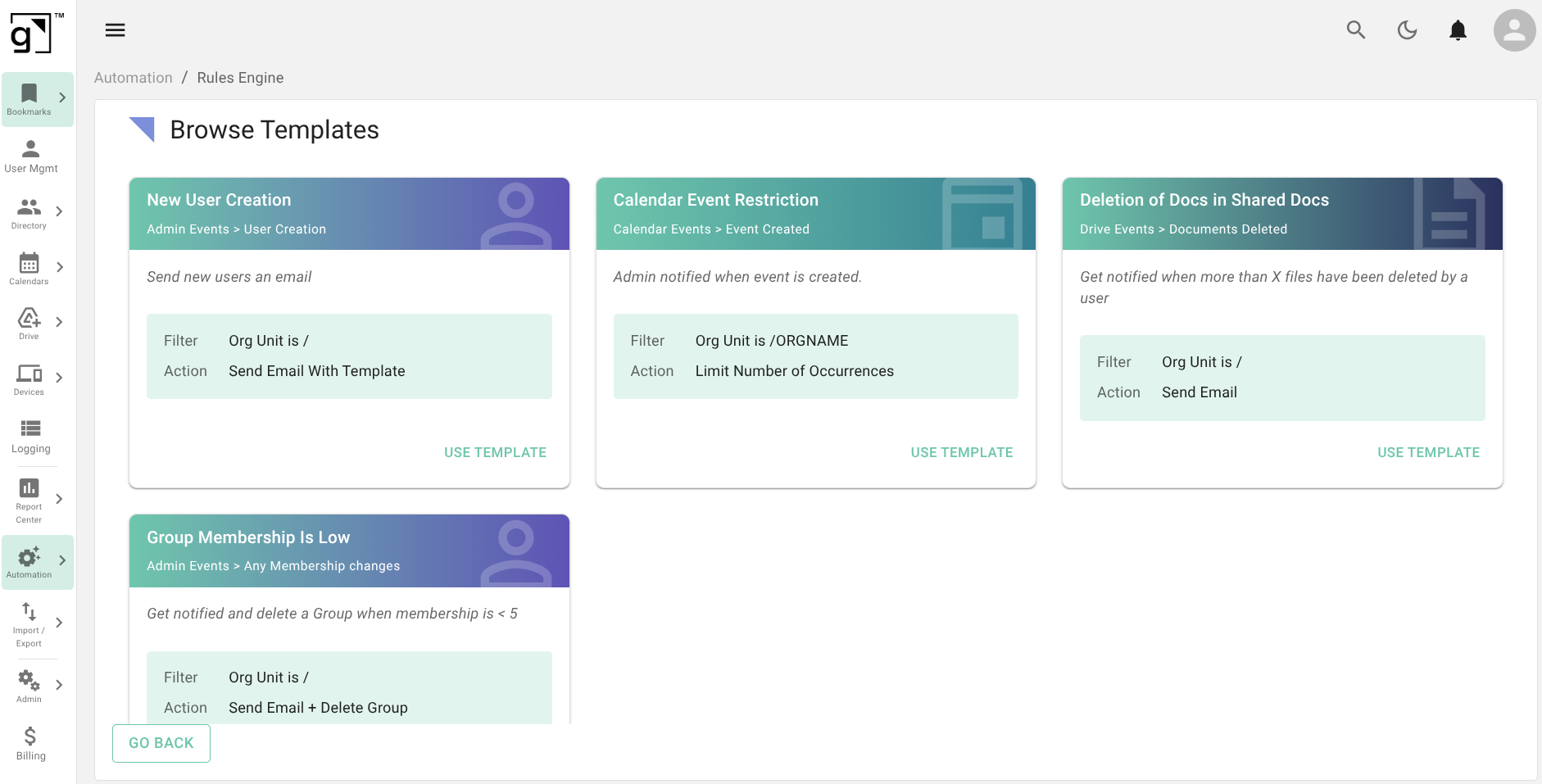
Meanwhile, there are other tools like Looker that can be explored for enhanced reporting capabilities, especially when integrated with gPanel, which is evolving to provide more powerful reporting options.
Hailee Zapata:
Great. It seems like it's ever-evolving. So, there's always a roadmap for what's coming next.
Thank you, John and Mark, and thank you, everyone, for joining us today. Look out for the follow-up email with additional information. Any unanswered questions will be addressed in a blog follow-up or by direct contact.
Have a great day, everyone! Thanks again, John and Mark.
Mark Baquirin:
Thank you so much.



























.jpg)